

Live TV, anime upscaling and a mini player
Live TV with a programme guide and catch-up, a full player in the browser, sharper anime as it plays, a mini player, and the apps in 12 more languages.
Live TV comes to every AIOStreams app: the channels from your IPTV provider or your addons on one page, with a programme guide, catch-up and reminders. The new Xtream addon signs in to your provider with the details it gave you.
The app gets a full player in a browser. The new WebGPU engine plays what a browser couldn't, such as HEVC, Dolby Vision, TrueHD and DTS, and the player now switches audio tracks, shows a file's own subtitles, draws styled subtitles as their authors made them and lines subtitles up by itself. LG and Samsung TVs get the same subtitles.
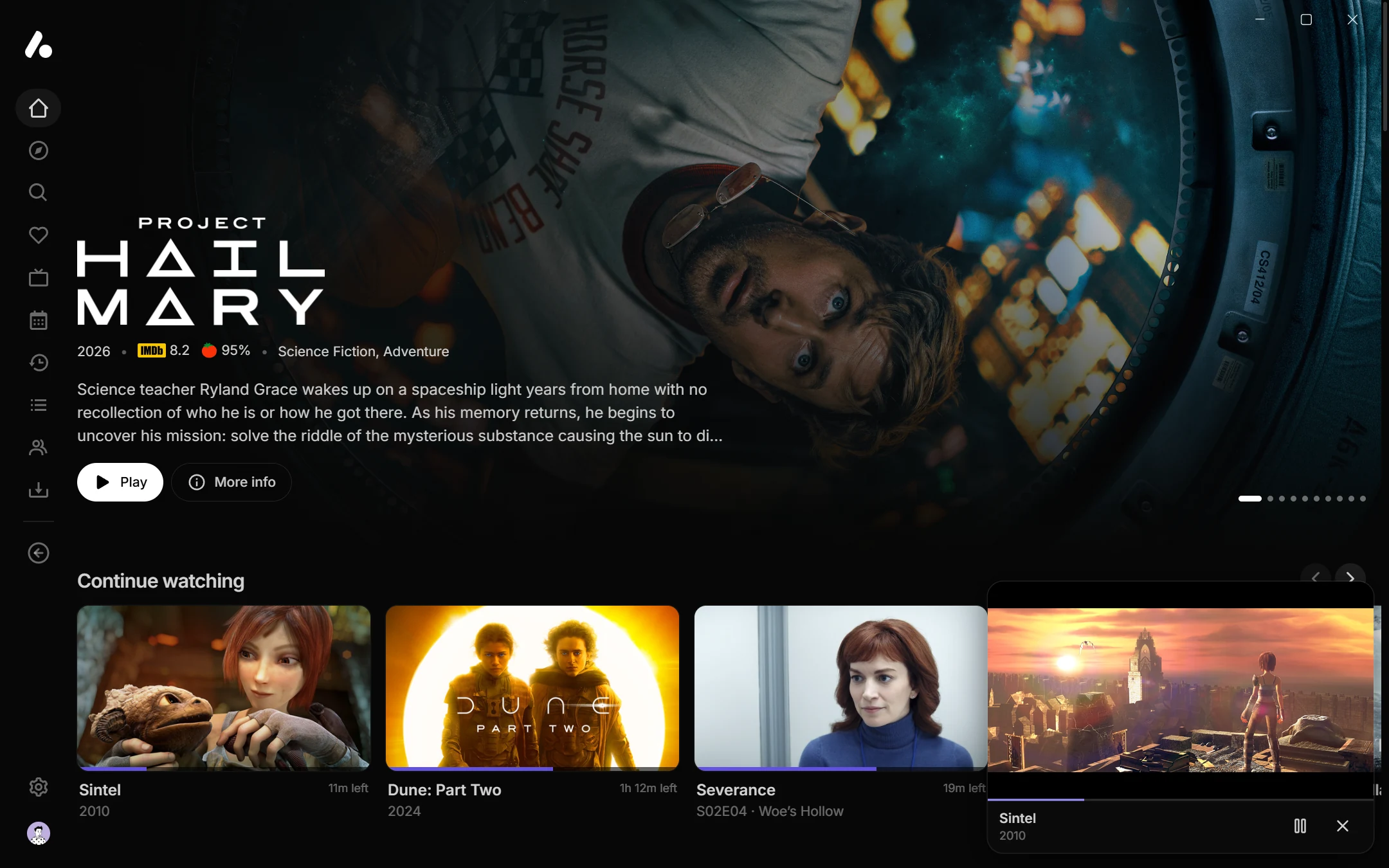
The desktop and Android apps, and the browser, upscale anime as it plays, for sharper lines and cleaner compression, and a mini player keeps the video going in a corner while you look around the app.
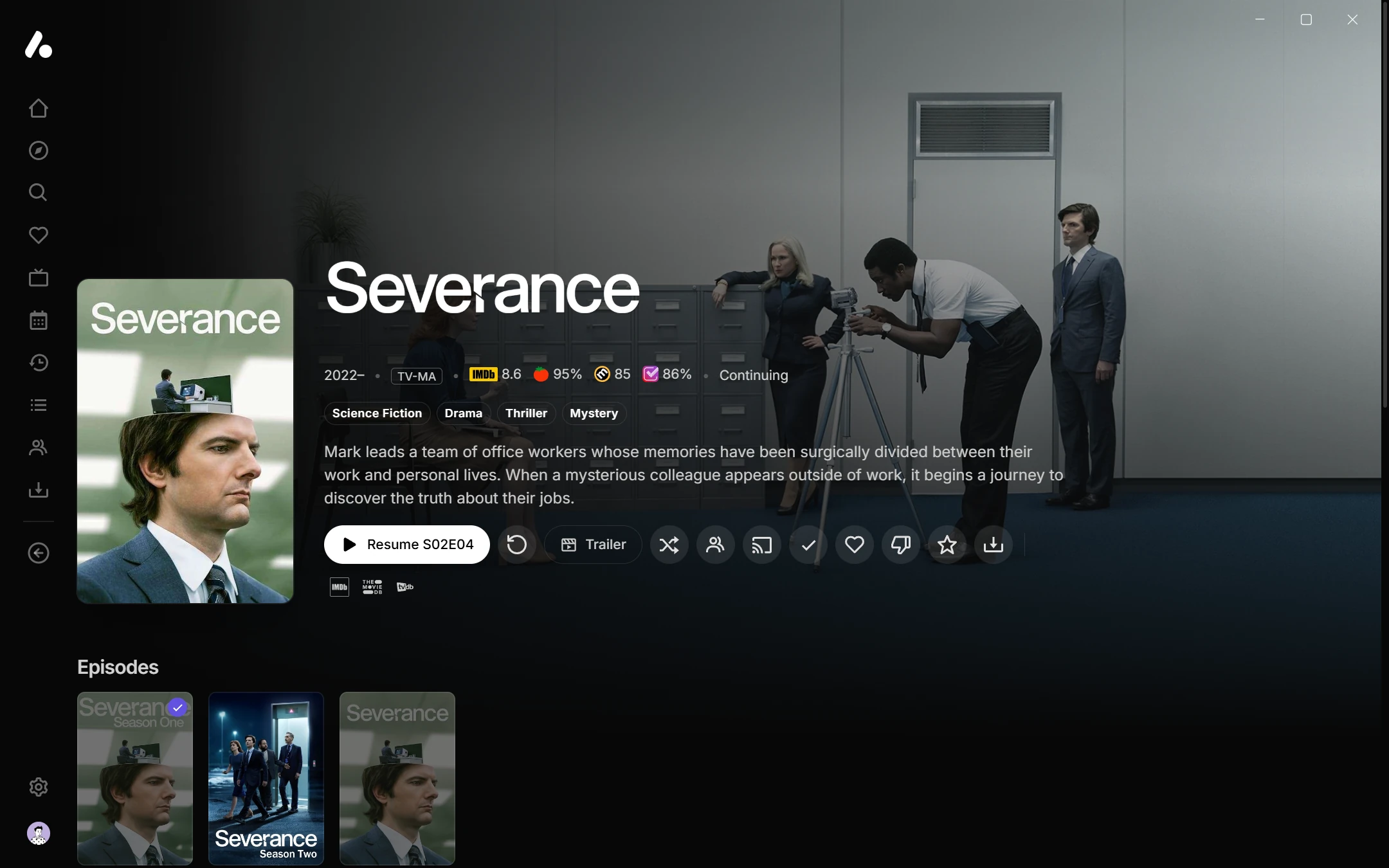
Title pages show a rating from each source, from IMDb and Rotten Tomatoes to Letterboxd and Trakt. The featured title on Home gets Play and More info, a card you rest on opens out to its details, and trailers play by themselves: in the card, in the featured title and behind a title's page. Phones get a centred look, a labelled row of actions and Android's back swipe, computers and tablets can put the tabs along the top, and the player adds chapters with pictures and a pause screen.
The apps now come in 12 languages besides English, thanks to the people translating them.
On the configure page, who gets this gives an addon or catalog to some of your users without writing a variant. Self-hosters should read Upgrading: instances now ask search engines not to list them, and variants share one work budget in place of six limits.
Live TV
Live TV puts the channels from every addon in your configuration on one page, grouped, numbered and searchable, with a guide of what's on. It's in every AIOStreams app: in a browser, on computers, phones and tablets, and on TVs. Once your configuration has channels, Live TV shows in the navigation.
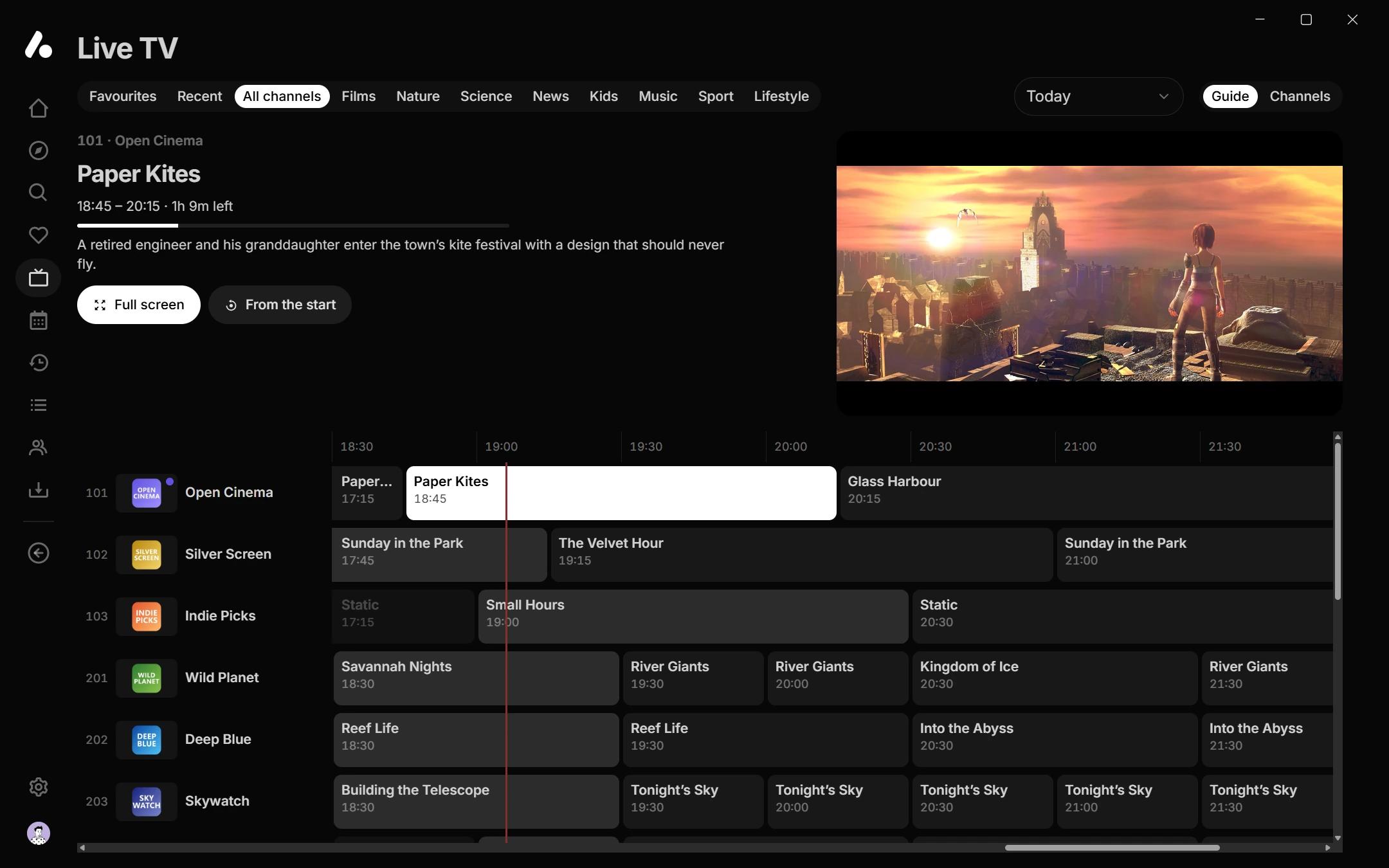
Channels come from addons, like everything else in AIOStreams:
- Your IPTV provider. The new Xtream addon, in the configure page's marketplace, signs in with the server address, username and password your provider gave you. It brings the provider's channels, their groups and their guide, and earlier programmes where the provider keeps them.
- Free channels, from marketplace addons such as USA TV and Debridio TV.
- Any addon with channels, added by its URL, such as one that reads an M3U playlist and an XMLTV guide.
On the Live TV page:
- The guide. Guide and Channels switch between the programme guide and a plain list, on screens wide enough for a guide. Days step through it: today, tomorrow, and earlier days for channels with catch-up.
- Groups. Favourites and Recent come first, then All channels and the groups your addons send. With many groups, a button opens them in a list you can search.
- Channel numbers. Type a number on a keyboard or remote to go to that channel. Channels keep the numbers their addon gives them, or are numbered in order.
- Watching. A channel plays in a preview at the top of the page, so you can keep looking through the guide. Full screen opens the player, where channel up and down, or Page Up and Page Down, change channel and Previous channel goes back to the last one. Pause and you fall behind live; Go live catches up. A channel that drops is reopened by itself.
- Programmes. Select one for its details: From the start plays the programme on now from its beginning, and Remind me asks, when a later one starts, whether to switch to it.
- Catch-up. Where a provider keeps the last few days of a channel, its past programmes play from the start, as a recording you can pause and seek.
- Favourites go in their own group, on the Favourites page and in a row on Home, and Start on under Settings → Interface can open the app on Live TV.
- Search finds channels by name or number, next to films and shows.
The page reopens on the channel you were last on. Live channels start without subtitles, and the audio and subtitles you pick are kept for each channel.
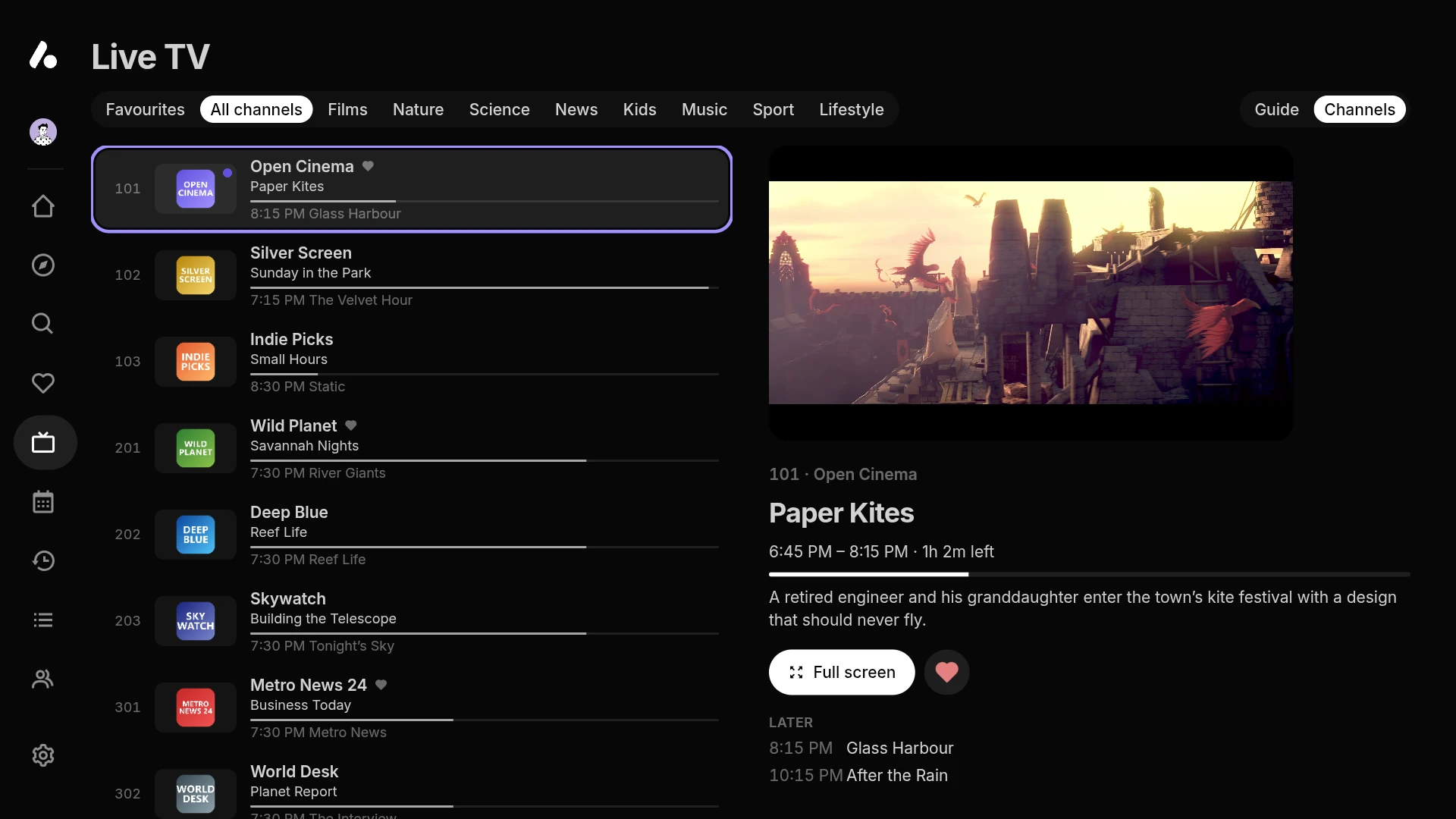
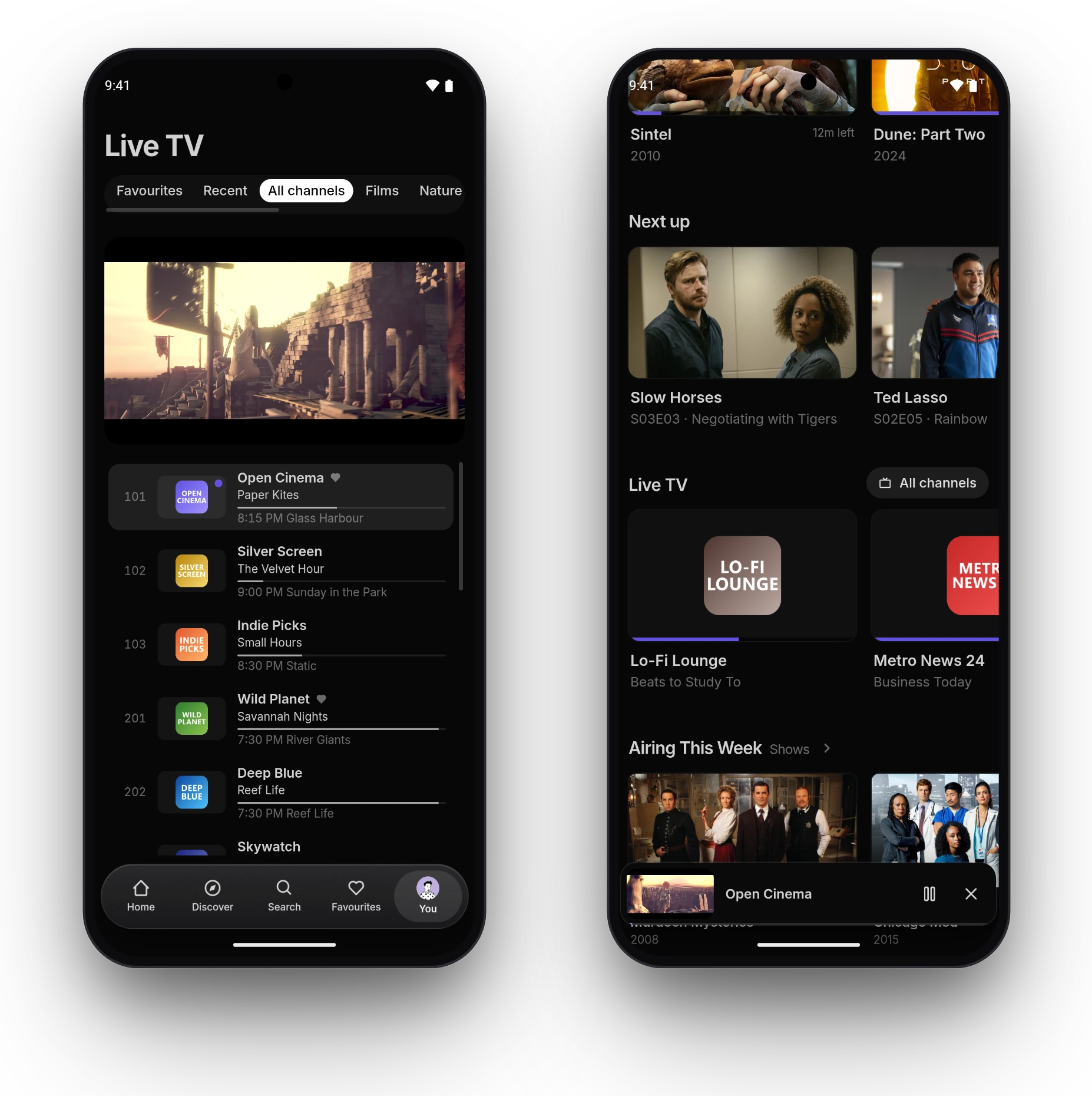
The same channels show in Stremio, where the guide fills Stremio's own, and Jellyfin apps get them as Live TV too. Live TV has the details. The channels shown are made up, playing Sintel and Tears of Steel, © Blender Foundation, shared under CC BY 3.0.
Playing in a browser
The app in a browser used to play only what the browser decodes itself. MKV files, HEVC video and surround sound often failed, there was no way to switch audio tracks, a file's own subtitles didn't show, and styled subtitles came out as plain text. Now the player reads and decodes the file itself with the new WebGPU engine, and draws it with the graphics card, so a browser plays much like the apps:
- More files play: HEVC and Dolby Vision video, and AC-3, E-AC-3, TrueHD and DTS sound, in MKV and MP4 files.
- Audio tracks. The audio menu switches between a file's tracks, for another language or a commentary.
- The file's own subtitles. The subtitle tracks inside an MKV or MP4 file show in the subtitle menu: ASS, SRT, WebVTT, MP4's own text subtitles, and PGS, the picture subtitles on Blu-rays.
- Styled subtitles as their authors made them. ASS and SSA subtitles are drawn with libass, the renderer mpv uses, so their styling, positions, signs, karaoke, animations and the fonts attached to the file look as they do in the desktop and Android apps.
- Subtitles that line themselves up. A subtitle from your addons, or a file you add, lines up with the file's own subtitles by itself, and one made for another frame rate is retimed first.
- Anime upscaling and your own shaders. See Anime upscaling.
- A stats panel on I.
- The screen stays on while a video plays.
None of it needs setting up. On a screen with HDR, turn on HDR output under Settings → Playback → Player to show HDR video in HDR, instead of converted to standard range.
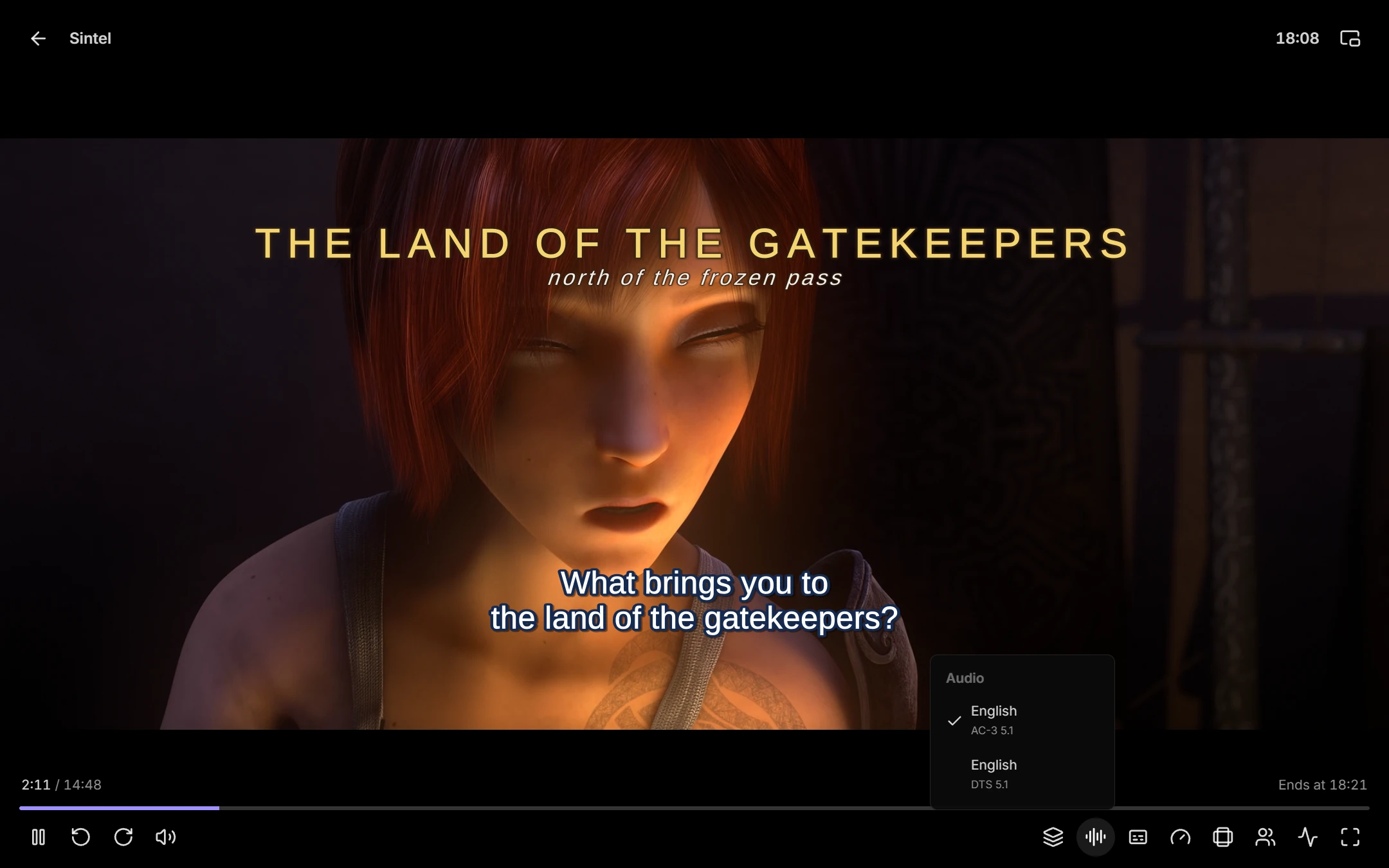
When the browser's own player plays
The WebGPU engine needs a browser with WebGPU, such as Chrome, Edge or Firefox, on a page opened over HTTPS. It also needs the file's host to let the browser read the file: streams through AIOStreams' proxy or its usenet streaming do, and so does TorBox.
Otherwise, and for live channels and streams that need extra headers, the browser's own player plays as before. It still draws styled subtitles with libass, and shows a file's own subtitle tracks where the host allows. If the engine can't play a version, as it opens or partway through, the browser's player takes over at the same point, with the same audio and subtitles. Engine under Settings → Playback → Player switches to the browser's own player for everything.
New in the app
Everything here works in every app, in a browser too, unless it says otherwise.
Anime upscaling
The desktop and Android apps, and the WebGPU engine in a browser, can upscale anime as it plays: lines come out sharper and compression cleaner, most of all in older and lower-resolution shows. Turn on Anime upscaling under Settings → Playback → Video.

 Usual scalingAnime upscaling
- Only anime. It applies to the shows and films your catalogs mark as anime, and leaves everything else as it was.
- On the graphics processor. It leaves HDR video, and video about as large as the screen, as they are, and turns itself off for a video the device can't keep up with. On Android it works in both ExoPlayer and mpv, and uses more battery.
- Compare it. In the desktop app and a browser, U turns it on and off for what's playing.
- Or bring your own. The Android app's built-in mpv now takes your own shaders, with Add a
shader under Settings → Android app, as the desktop app's mpv folder already does. In a
browser, Shaders under Settings → Playback → Player takes
.wgslfiles; they stay in that browser and apply in name order. mpv's GLSL shaders need converting first.
Mini player
Mini player in the player keeps the video going in a corner while you look around the app. Select it to open the player again. Set Back in the player under Settings → Playback → Player to open it with Back too. It's in every app except on TVs, where Live TV's preview is the small player.
LG and Samsung TVs
The TV apps keep the TV's own player, and get the browser's new subtitles:
- Styled subtitles as their authors made them, drawn with libass instead of as plain text. Very heavy typesetting can drop frames on a slower TV.
- The file's own subtitles. The subtitle tracks inside an MKV or MP4 file show in the subtitle menu, from any host, PGS included.
- Subtitles that line themselves up with the file's own, as in the other apps.
- Trailers now play, in the TV's own player, and by themselves as in the other apps.
Ratings from each source
Title pages show a badge for each score your metadata addon sends: IMDb, Rotten Tomatoes' critics and audience, Metacritic, Letterboxd, RogerEbert.com, Trakt, TMDB and MyAnimeList. Where room is short, as on Home, the first three show. AIOMetadata sends them once its critic ratings are on, and custom CSS can hide the ones you don't want.
Title pages
- Episodes show their title first, with their air date and a menu button, and a bar slides to the season that's open.
- Unaired episodes are marked as such. The app asks before playing or downloading one, and passes over them when playing on or downloading a season. Mark unaired episodes under Settings → Playback turns it off, for shows whose air dates are often wrong.
- No spoilers. Blur episodes you haven't started, under Settings → Interface, blurs their pictures, titles and descriptions until you're on one.
- Titles without details. A title no addon in your configuration has details for now opens, with a page saying a metadata addon is needed. A film still plays from it.
- Every version. The app lists up to 500 versions of a title, where before it stopped at your configuration's Versions per item, which now applies only to Jellyfin apps. Result Limits under Filters on the configure page sets how many you get.
- Resuming a version that's gone. If the version you were watching is no longer offered, as when the copy in your debrid library takes its place, resuming plays the same release from the same service. Failing that, with Auto-play the first version on, it plays the first version instead of listing them.
Home
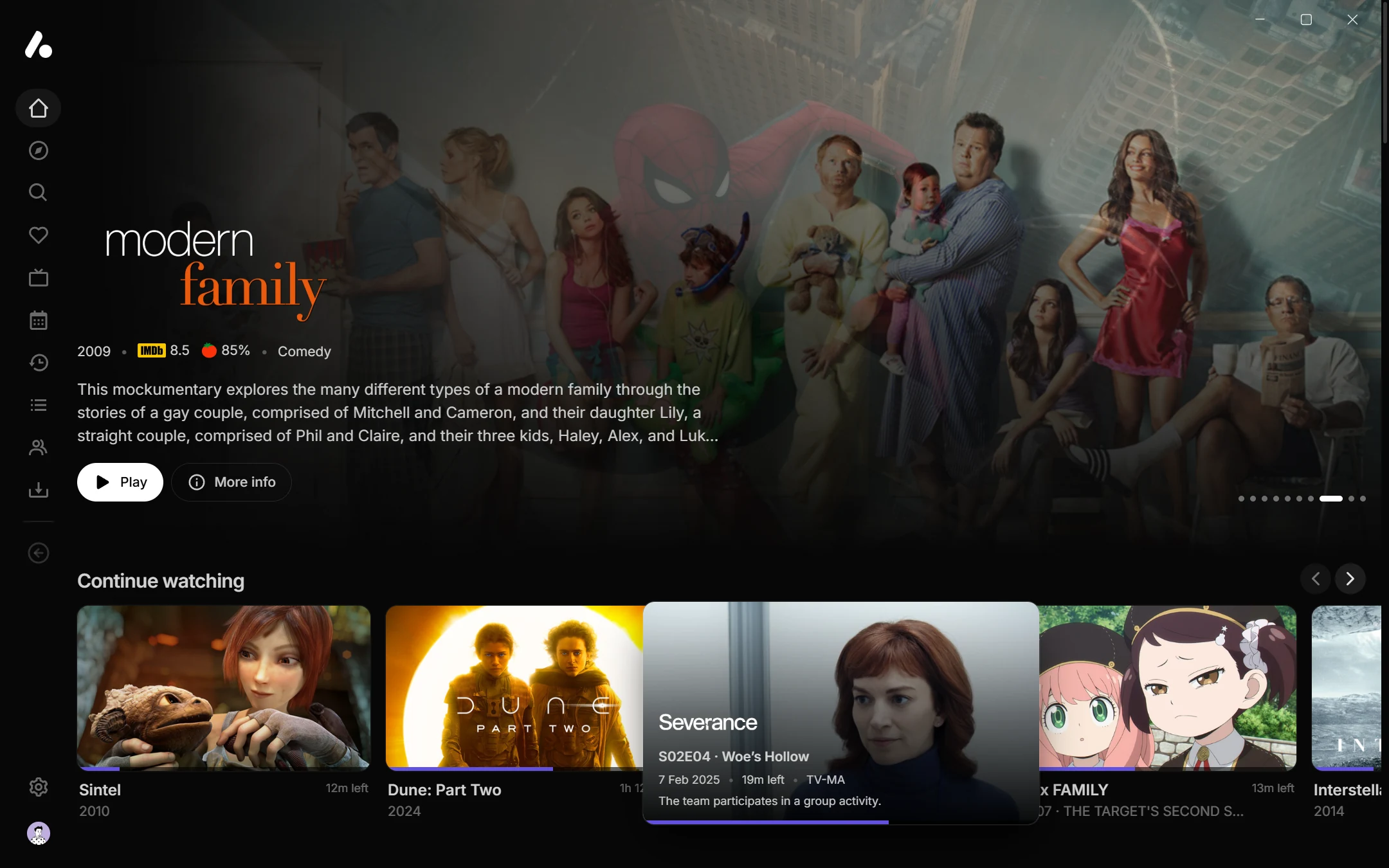
- Play and More info sit on the featured title, for shows too. Time on each title under Settings → Interface sets how long it stays on each, and a swipe, or a drag with the mouse, moves it on sooner.
- Cards you rest on. While the featured title rotates, a card you rest on with a remote or the keyboard opens out in its row to a wide picture with its details, and the cards after it slide along. With a mouse it pops out a bigger preview over the row instead, so the cards under the pointer stay put. Card you rest on under Settings → Interface picks which, or turns them off.
- Favourite channels get a row of their own.
Trailers that play by themselves
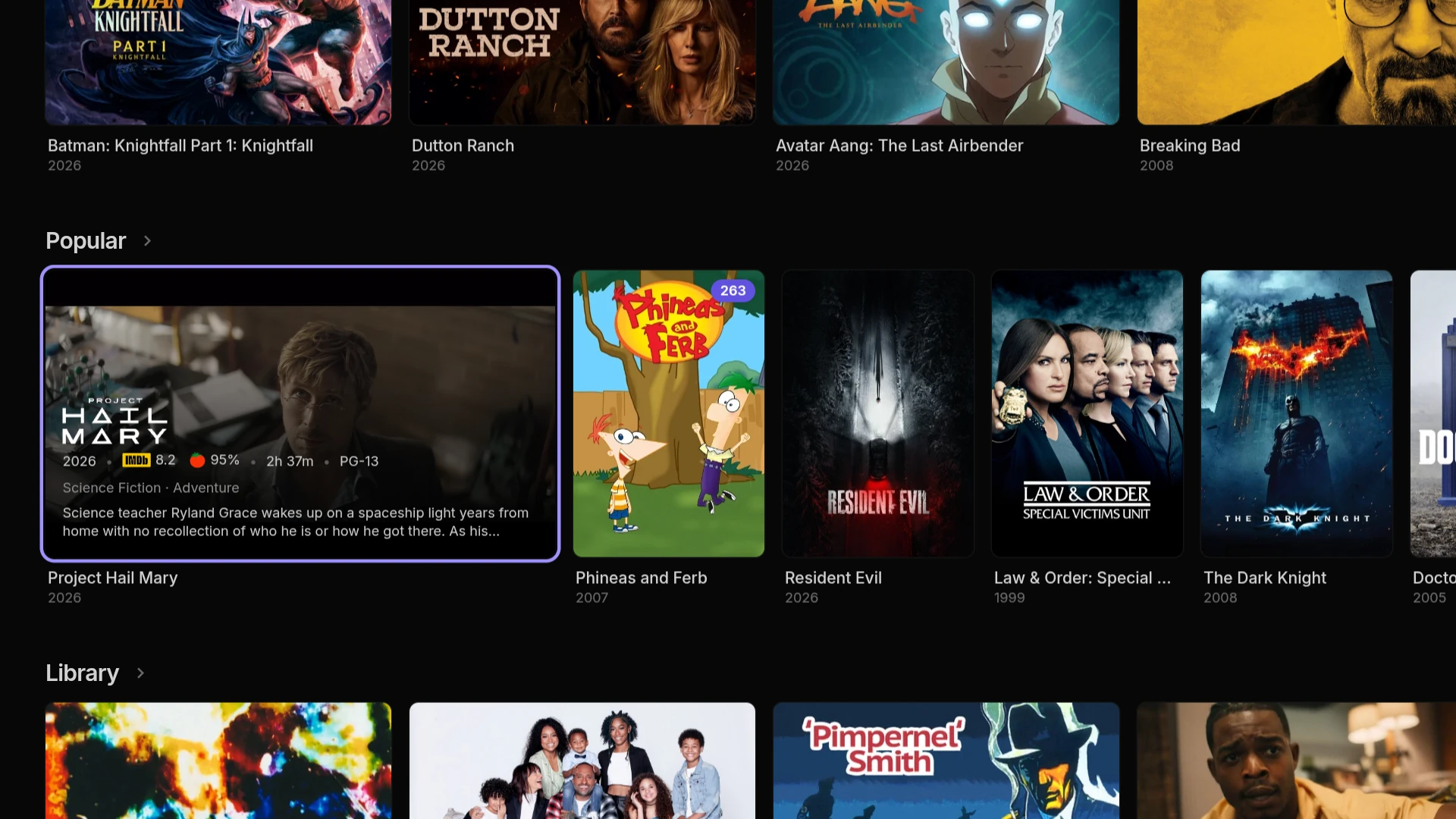
Rest on a title for a moment and its trailer plays:
- In cards. A moment after a card on Home opens out or pops out, its trailer plays in it, and its details fade away. Move on and it stops.
- In the featured title. When the featured title follows the card you're on, or sits in the corner, the card's trailer plays in a wide box at the top of Home. When it rotates, a title's trailer plays once you've gone to it yourself: up from the rows, turning to it, or picking its dot.
- Behind a title's page. Left at the top of a title's page for a few seconds, its trailer plays behind the page. Up, Playback controls or the page's trailer button shows it whole with the player's controls, carrying on from where it was, and Back returns to the page with it still playing.
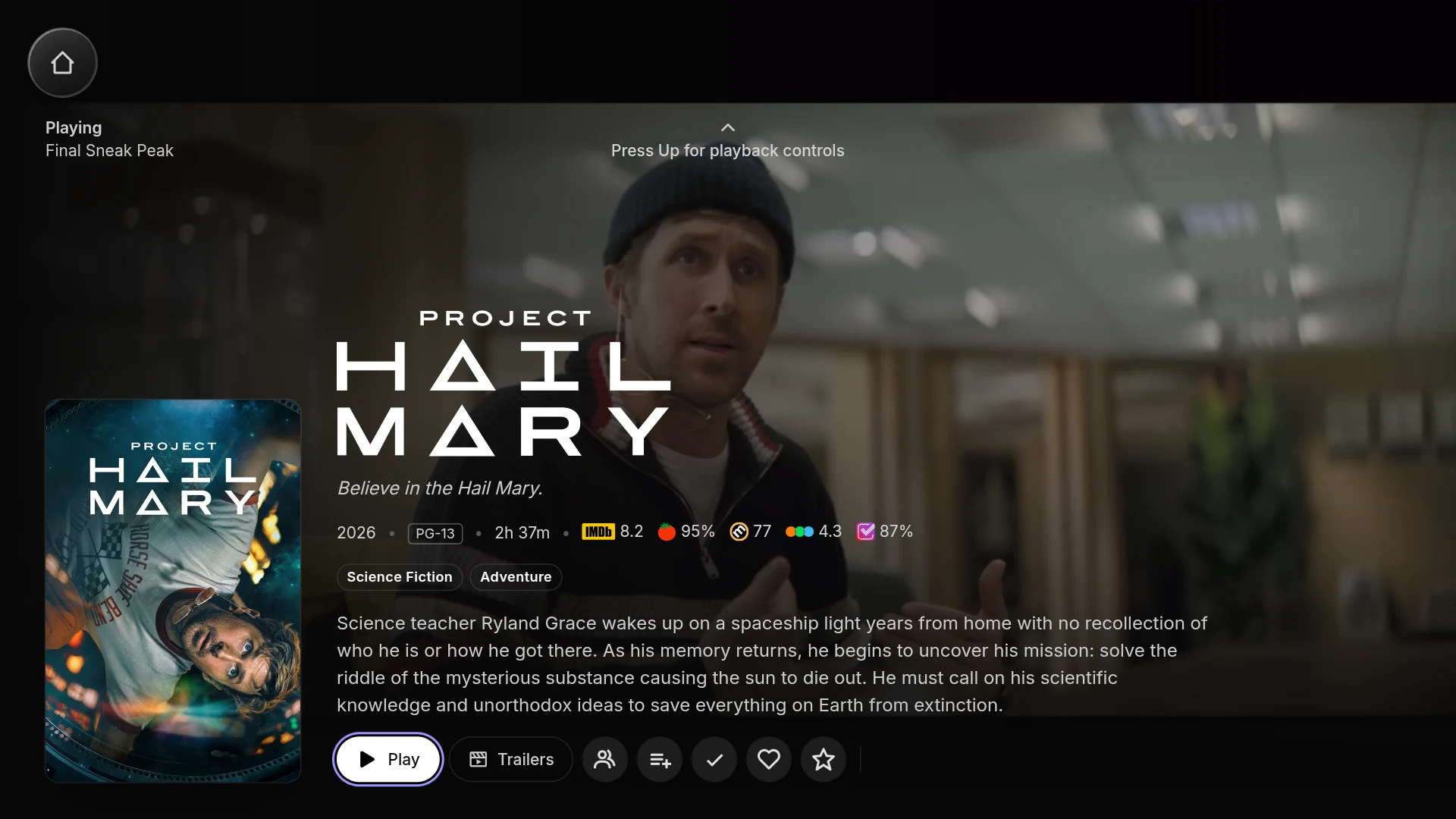
Play by themselves under Settings → Interface picks where they play. They're on with a mouse and on TVs, and off on phones and tablets. Sound beside it plays them with sound, on by default only on TVs, and a trailer you open whole always has sound. On Samsung TVs they play by themselves only with Sound on. They wait while something plays, during a watch party, and when your device asks for reduced motion or your browser is saving data.
On phones
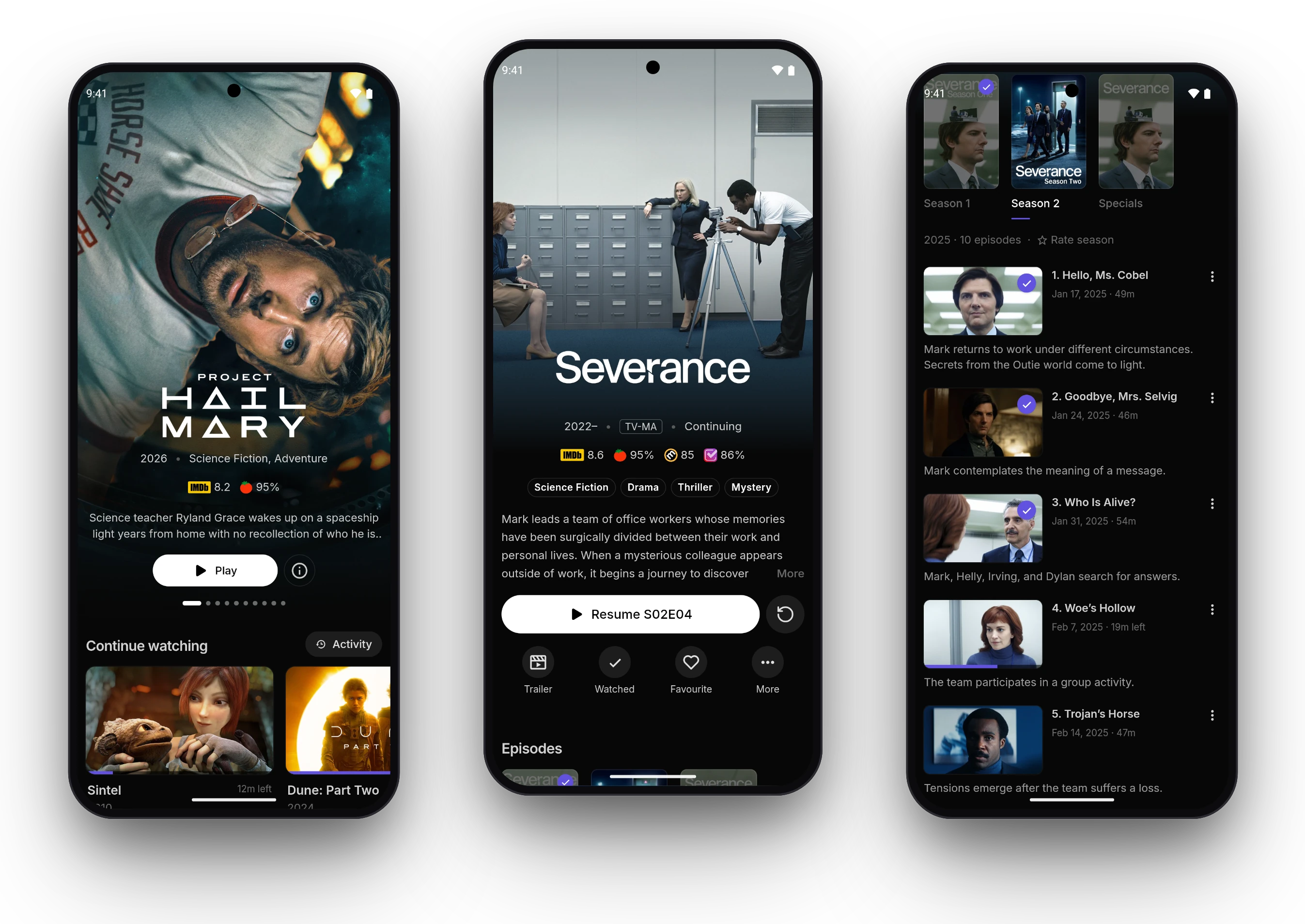
- Centred. The featured title and a title's heading sit in the middle of the screen, and what's over the artwork fades as you scroll.
- Actions in a row. Below Play, a title's actions have labels: Trailer, Watched, Favourite and the ones that fit, with the rest under More.
- Opening a title grows its card into the page.
- Back swipe. In the Android app, Android's back gesture slides the page away under your finger.
Getting around
- Tabs along the top. On a computer or a tablet held sideways, the tabs can run along the top instead of down the side, under Settings → Interface. They, and the bar at the bottom of a phone, can show their icons alone.
- Start on. Start on under Settings → Interface picks the page the app opens on.
- The bottom bar slides away while you scroll down, and back as you scroll up.
- Liquid glass now bends what's behind it like a lens, with a lit rim.
In the player
- Paused. Left paused for a few seconds, the player dims and shows what's playing: the title, the episode and its synopsis.
- Chapters. In the desktop and Android apps, Chapters lists a file's chapters in a sheet, each with a picture.
- With a TV remote, a press of left or right skips, and holding it scrubs through a row of pictures of the video. A remote's channel buttons go to the next or previous chapter.
- Select plays or pauses while the controls are hidden. Turn off Show the controls on pause and skip, under Settings → Playback, to keep them hidden then.
- Subtitles move smoothly up above the controls when they show, and back down after.
- Styled subtitles from addons. In the desktop and Android apps, ASS subtitles from your addons keep their styling, where before they arrived as plain text.
- The time shows in the player's top bar.
- Find versions when a title opens, under Settings → Playback, looks for versions as soon as a title's page opens, so Play doesn't wait.
- Picture-in-picture button. A button in the player's controls moves the video into a small window that stays over your other apps. Picture-in-picture is new in a browser and in the desktop app on Windows, where the app's window shrinks to the video with its own controls, keeps the video's shape as you resize it, and opens where you left it. In the Android app on phones and tablets, the button does what leaving the app already did.
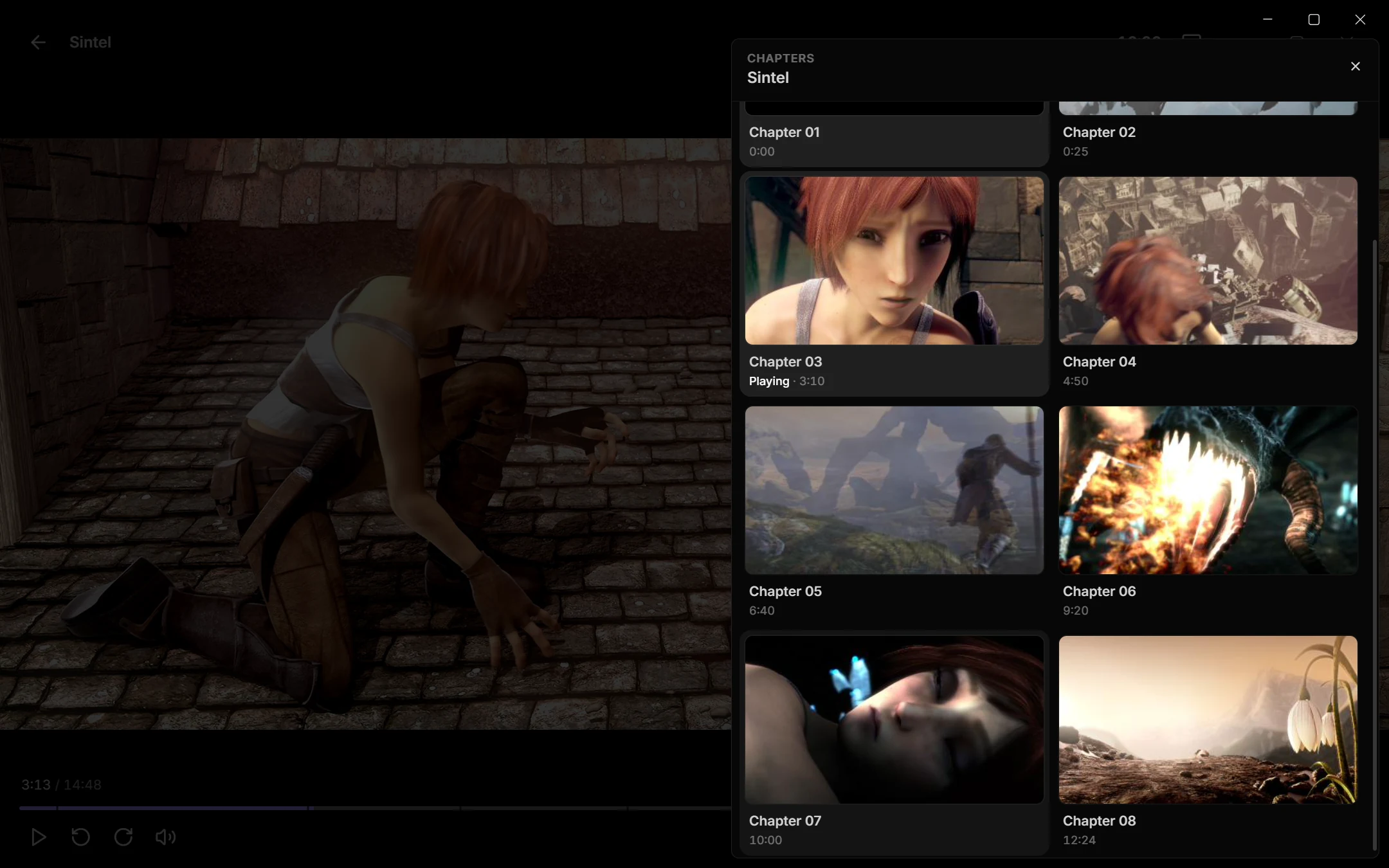
Sintel is © Blender Foundation, shared under CC BY 3.0.
The Android app
- Styled text subtitles in ExoPlayer. ExoPlayer now draws SRT and other text subtitles with libass too, so they look the same in both engines and slide smoothly.
- Smoother menus. On a screen with a high refresh rate, the controls and menus over the video move at its fastest rate, while the video itself keeps its own.
- Opening the app shows its logo until the app is ready, instead of a blank screen.
hwdecin yourmpv.confnow takes effect, where the app's own hardware decoding choice used to win.- Fuller reports. Report a problem sends more of the app's log, and after a crash, what the app was doing just before.
Smaller things
- Playlists can Shuffle, in a mixed order that stays the same until you turn it off, and Repeat, going back to the first title after the last.
- Faster on TVs. Rows scroll with less work, artwork loads nearest first, at the size it's drawn, and the player's controls show and hide with about a third of the work they took.
- Licences. About lists the open source projects in the app, with their licences.
- Time format under Settings → Interface shows times of day, such as the player's clock and the TV guide, in a 12- or 24-hour clock. On Automatic, the desktop and Android apps follow the device's own setting.
- More to style with custom CSS. The new pages, the mini player, the player's top bar and chapters, and the episode states have hooks. See Web app CSS.
The apps in your language
The AIOStreams apps now come in 12 languages besides English: Chinese (Simplified), French, German, Greek, Indonesian, Italian, Malay, Polish, Portuguese, Portuguese (Brazil), Spanish and Turkish. Choose yours under Settings → Interface → Language, or leave it on System to follow the device.
A language shows in the apps once at least half of it is translated, so a half-done translation doesn't leave you switching between languages. Dutch, Swedish, Norwegian, Finnish, Slovenian and Catalan have been started and need help. Translations are made on Hosted Weblate, with no coding needed, and the translating guide explains the rest.
The media server
For Jellyfin apps signed in to your configuration:
- Live TV. The channels, their groups and the guide show as Jellyfin's Live TV, and past programmes with catch-up play from their start.
- Ratings. A title's IMDb score is its community rating and its Rotten Tomatoes score its critic rating, from your addons' ratings.
- Titles without details open, named by their id, with a summary saying no addon has details for them, rather than failing.
- Played at the right point. The AIOStreams apps send the length of the file they played, so a title is marked played at the right point even when its runtime from metadata is minutes off.
The configure page
- Who gets this. The people button beside each addon in My Addons and each catalog in Catalogs chooses who gets it: the base config, each variant you install from a link, and on a media server, each user. Tick or untick a row, and the configure page writes the variant lines for you. See who gets an addon or catalog.
- The order of users. Drag users in the Users tab into the order Jellyfin apps' sign-in pickers list them in. The primary user stays first.
- Your own poster service. Custom URL under Services → Posters takes a poster address
of your own, with placeholders such as
{imdb_id}for each title's id. - New in the marketplace: a Cinemeta addon, and SearchNZB among the Newznab indexers.
- Back-to-back selectors in variants narrow the same list, so
presets[type=torrentio][options.name*="4K"]is only the Torrentio instances with 4K in their name.
For addon developers
- Live TV. A catalog of type
tvorchannelis a list of channels, withgenrefor their groups, and a guide in Stremio's own format fills the programme guide, in Stremio too. Channel numbers, logos and catch-up are covered in Live TV. - Ratings.
ratingson a meta lists each source's score, in the order to show them. See Metadata. - An addon SDK.
@aiostreams/addon-sdkhandles the routing, the configuration in the URL, a configure page built from your settings, and checks of every answer, on Node, Bun, Deno and Cloudflare Workers. The new addon development guide walks through building one, trying it in AIOStreams and hosting it.
For self-hosters
The Xtream addon
The Xtream addon's settings are under Settings → Built-ins: how long a request may take
(BUILTIN_XTREAM_TIMEOUT), its user agent (BUILTIN_XTREAM_USER_AGENT), how many requests go to
one provider at once (BUILTIN_XTREAM_HOST_CONCURRENCY), how often channel lists and guides are
fetched again (BUILTIN_XTREAM_LINEUP_TTL, BUILTIN_XTREAM_GUIDE_TTL), and how much memory each
may use (BUILTIN_XTREAM_LINEUP_MEMORY, BUILTIN_XTREAM_GUIDE_MEMORY).
New settings
- Allow search engine indexing, under Settings → Branding (
ALLOW_SEARCH_INDEXING, off). See Upgrading. - Max variant work per request, under Settings → User Limits (
MAX_VARIANT_WORK, 100000), in place of six variant limits. See Upgrading. - Max versions in the app, under Settings → Media server (
JELLYFIN_MAX_APP_VERSIONS, 500), how many versions the AIOStreams app lists. Max versions per item (JELLYFIN_MAX_VERSIONS) now applies only to Jellyfin apps. - Cinemeta's address, timeout and user agent, under Settings → Presets (
CINEMETA_URL,DEFAULT_CINEMETA_TIMEOUT,DEFAULT_CINEMETA_USER_AGENT).
Upgrading
Nothing in this release changes install URLs or needs a manual migration. A few defaults change.
Search engines. Every page an instance serves now asks search engines not to list it, with an
X-Robots-Tag: noindex header, so your configure page drops out of search results over the next
weeks. For a public instance you want people to find, turn on Allow search engine indexing
under Settings → Branding (ALLOW_SEARCH_INDEXING).
Variant limits. Variants on one request now share a work budget, Max variant work per
request (MAX_VARIANT_WORK, 100000), where each instruction costs one plus one for every entry
it looks through and every value it writes. It replaces MAX_VARIANT_SCRIPT_LENGTH,
MAX_VARIANT_TOTAL_SCRIPT_CHARACTERS, MAX_VARIANT_TOTAL_INSTRUCTIONS, MAX_VARIANT_PATH_MATCHES,
MAX_VARIANT_VALUE_DEPTH and MAX_VARIANT_PATH_SEGMENTS, which no longer do anything; scripts have
no length limit of their own beyond MAX_JSON_BODY_SIZE. Max variants (MAX_VARIANTS) now
defaults to 50, up from 10.
Resume points. Minimum resume percentage under Settings → Watch State
(WATCH_STATE_MIN_RESUME_PERCENT) now defaults to 0, so every position you stop at is kept. Set it
back to 5 to leave titles stopped in their first moments out of Continue Watching.
Unaired episodes in Jellyfin apps. Mark unaired episodes, in the media server's settings under Save & Install, is now off unless you turned it on. Jellyfin apps list upcoming episodes as normal ones, since some hide unaired episodes altogether. The AIOStreams app still marks them and asks before playing one.
Credits
Thanks to everyone who contributed to this release: @chrisk325, @itscaptainjack, @kaziqta, @MidnightKittenCat, @PanagiotisKaraliolios, @thomasrtg, @Vidhin05, @webstreamr, @WildToastyMop and @yahya637.
And to the translators, who put the apps into Italian (mochkoli), Portuguese (Brazil) (procopio, platchuk, sterzeck), Spanish (spg76, njlowe21), Malay and Indonesian (aio-sama, arifpedia), French (dark56100), Turkish (toxiccloud, ardakrt), Greek (screenmax1234, nosvasedis), Portuguese (miguelsantiago1102, thisisito) and Chinese (Simplified) (yhh-1213, h9wrd), kept German (Solilord, @hamburgercowgoldfish) and Polish (Krzysiek) up to date, and started on Dutch (emiel, dennie), Swedish (labbe), Norwegian (lystad93), Finnish (merelymaki), Slovenian (glynx) and Catalan (dcapdevilaniubo).
AIOStreams builds on others' work:
- libass draws styled subtitles in every app, now in a browser and on TVs through JASSUB by ThaUnknown, and in ExoPlayer on Android.
- WebGPU-Player by alchemyyy is the WebGPU engine.
- mpv and FFmpeg play the video in the desktop and Android apps. FFmpeg also draws the chapter pictures, and its decoders are part of the WebGPU engine.
Full commit-level history for this release is in the GitHub release.