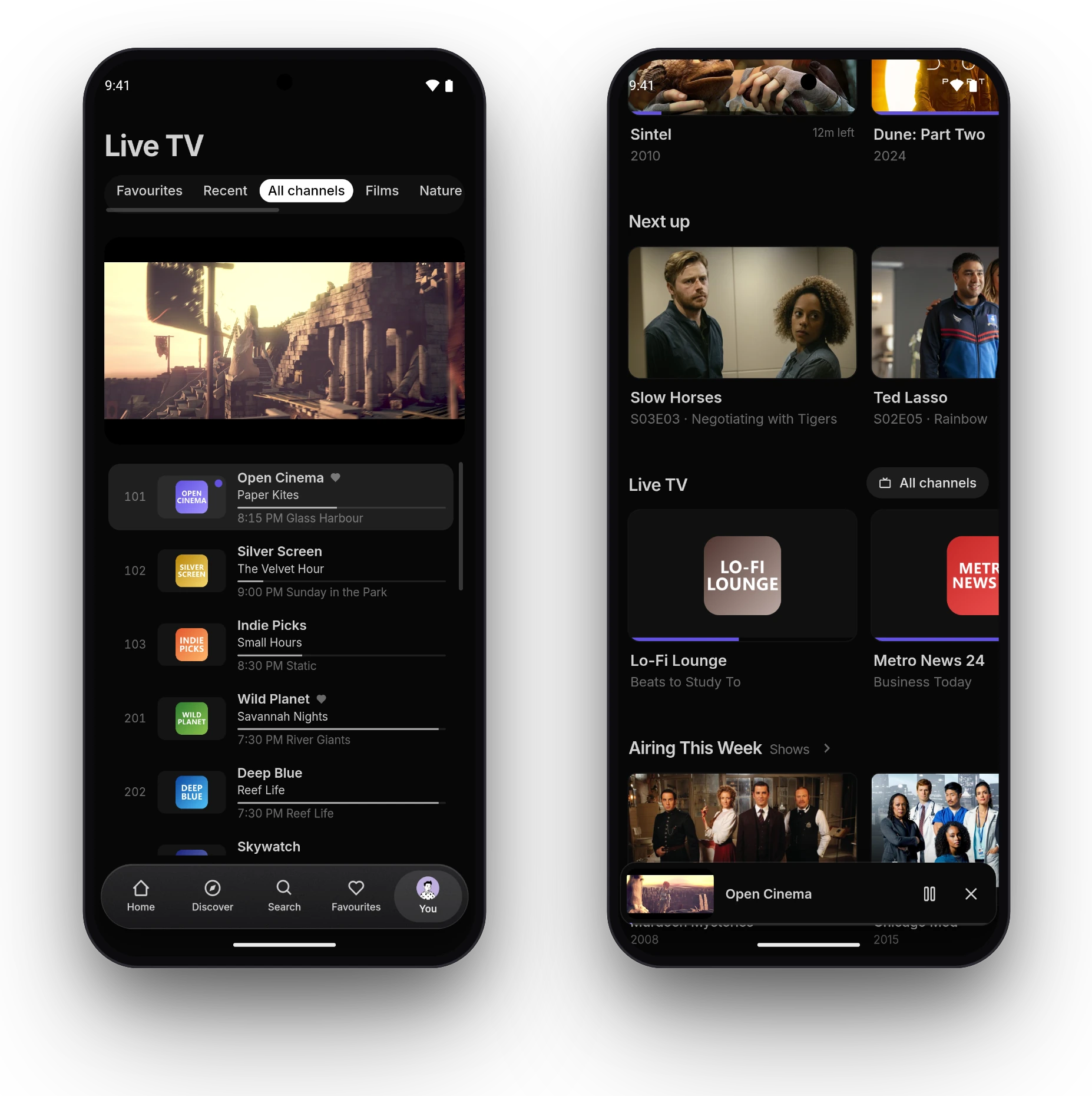

Live TV
Channels from your IPTV addons or an Xtream login, with a programme guide, catch-up and reminders, in every AIOStreams app.
Live TV puts the channels from every addon in your configuration on one page, grouped, numbered and searchable, with a guide of what's on. It's in every AIOStreams app: in a browser, on computers, phones and tablets, and on TVs.
Adding channels
Channels come from addons, like everything else in AIOStreams. Add one in the configure page's addon marketplace:
- Your IPTV provider. The Xtream addon signs in with the server address, username and password your provider gave you. It brings the provider's channels, their groups and their guide, and earlier programmes where the provider keeps them.
- Free channels, from marketplace addons such as USA TV or Debridio TV.
- Any Stremio addon with channels, added by its URL, such as one that reads an M3U playlist and an XMLTV guide.
Once your configuration has one, Live TV shows in the navigation. The same channels show in Stremio, and the guide fills Stremio's guide too. Making an addon? See Live TV in the addon protocol.
Hiding, renaming and reordering channels is up to the addon. The Xtream addon keeps your provider's order and groups.
Finding a channel
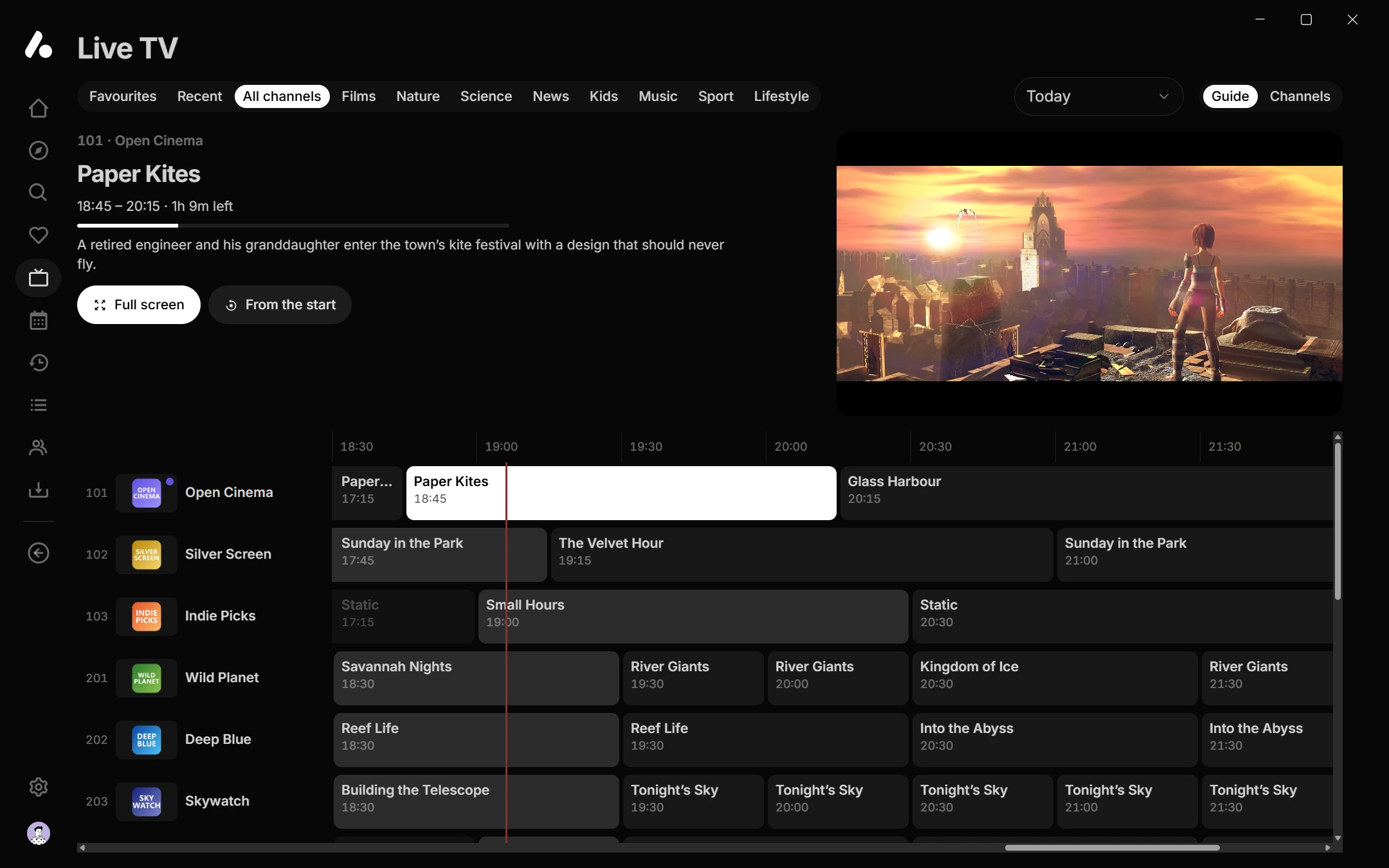
- Groups run along the top: Favourites and Recent first, then All channels and the groups your addons send. With many groups, a button opens them in a list you can search.
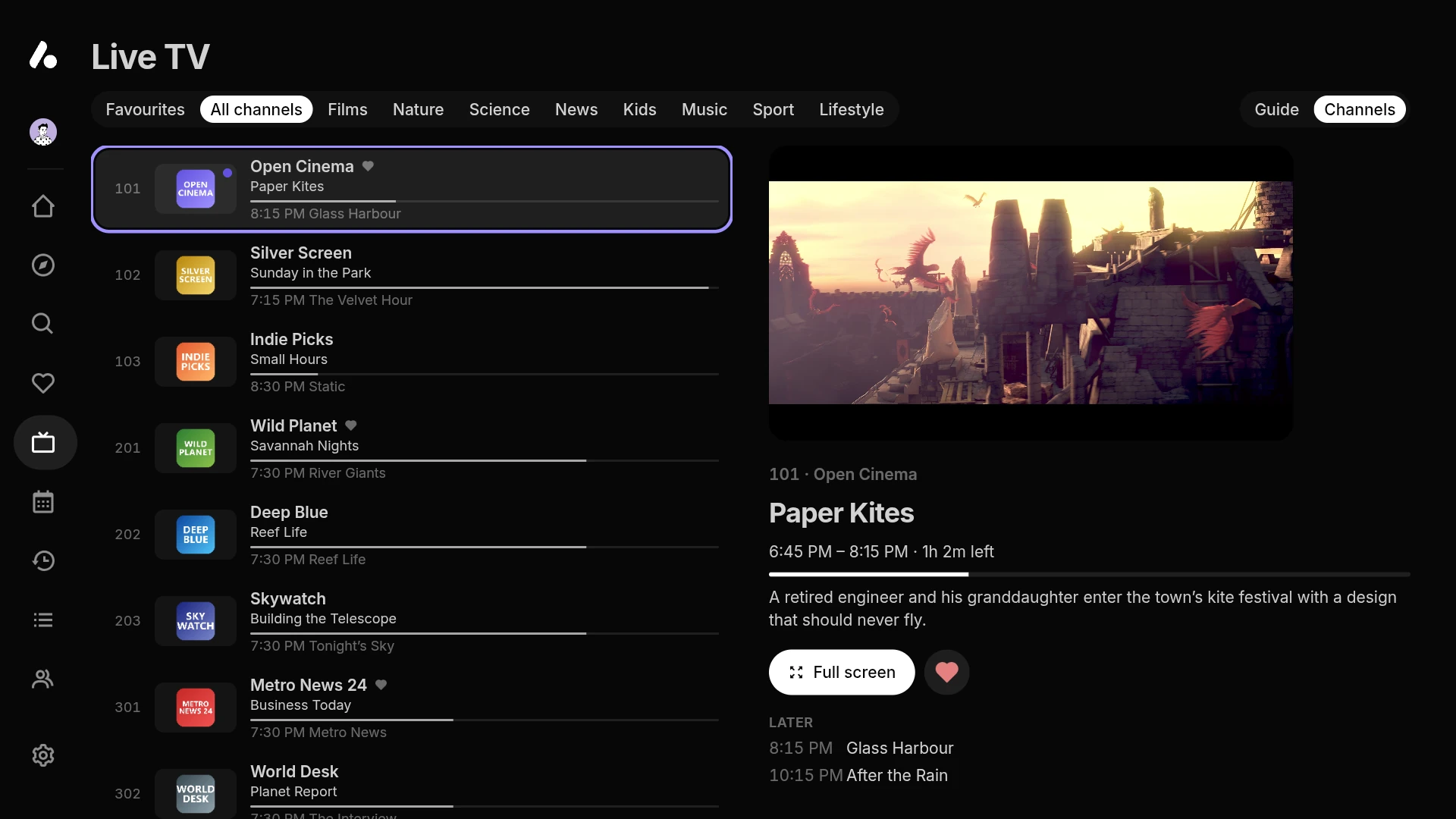
- Guide and Channels switch between the programme guide and a plain list, on screens wide enough for a guide and when your channels have programmes. Phones and TVs show the list.
- Days step through the guide: Today, Tomorrow, and earlier days for channels with catch-up.
- Channel numbers: type a number on a keyboard or remote to go to that channel. Channels keep the numbers their addon gives them, or are numbered in order.
- Search finds channels by name or number, next to films and shows.
The page reopens on the channel you were last on.
Watching
Pick a channel and it plays in a preview at the top of the page, so you can keep looking through the guide while it plays. Full screen opens the player, and Back returns to the guide with the preview still playing.
In the player:
- Up and Down on a remote, Page Up and Page Down on a keyboard, or a remote's channel buttons go to the next or previous channel. Type a number to jump to one, and Previous channel goes back to the last.
- The bar shows the programme on now and how far into it you are. Pause and you fall behind live; Go live catches up.
- Channels opens the lineup without leaving the player.
- A channel that drops is reopened by itself. If it keeps failing, the app moves on to the channel's next source.
Live channels start without subtitles. Audio and subtitle tracks you pick are kept for that channel.
Programmes
Select a programme in the guide for its details:
- Watch on the programme on now, and From the start to play it from its beginning where the channel has catch-up.
- Remind me on a later one. While the app is open, it asks at the programme's start whether to switch to it. Reminders are kept on that device, for each user.
Catch-up
Some providers keep the last few days of a channel's programmes. Those channels show earlier days in the guide, and their past programmes play from the start, as a recording you can pause and seek. Through the Xtream addon, catch-up comes from your provider's archive.
Favourites
Add favourite in a channel's details puts it in the Favourites group, on the Favourites page under Channels, and in a row on Home. To open the app on Live TV, set Settings → Interface → Start on.